How to Free Up Storage on iPhone Without Deleting Everything

To free up storage on an iPhone without deleting all your photos, empty the Recently Deleted folder, clear Safari cache, and remove duplicate photos. These three steps alone can recover 3 to 8 GB. Most iPhone users never touch these because iOS does not surface them in the "Storage Almost Full" notification. That notification suggests offloading apps, which saves a fraction of what clearing hidden cached data and forgotten duplicates does.
Why Your iPhone Says Storage Is Full
The "Storage Almost Full" alert appears when your iPhone drops below approximately 1 GB of free space. iOS pushes you toward "Offload Unused Apps," a feature that removes app binaries while keeping their data. The problem: offloading a typical app saves 50 to 200 MB, and most people do not have enough unused apps for that to matter.
The real storage drain is invisible:
- Cached data from Safari, social media, and streaming apps: 1 to 5 GB
- The Recently Deleted folder holding photos you thought you deleted: 1 to 5 GB
- Duplicate and near-duplicate photos from bursts, screenshots, and resaves: 1 to 5 GB
- 4K videos you watched once and forgot about: 170 to 400 MB per minute of footage
- Message attachments: every photo, GIF, and link preview sent through iMessage
- Apple Intelligence models: 7 GB downloaded silently since iOS 18.3, enabled by default on supported devices. Combined with the base iOS install, iPhone owners on Reddit report 30 to 40 GB of total system overhead on newer devices, making 128 GB feel like 64 GB used to
- Voice Memos in Lossless mode: the default recording setting uses 3.5x the file size of Compressed; a single toggle in Settings fixes it
- App caches that survive "Clear Cache" buttons: Spotify and TikTok can accumulate 10 to 50 GB of cache that their in-app clear buttons do not fully remove
None of this appeared overnight.
Check What Is Using Your Storage
Before deleting anything, look at the breakdown iOS gives you.
- Open Settings.
- Tap General.
- Tap iPhone Storage.
Wait a few seconds for the color-coded bar to finish loading. It splits your storage into categories: Apps, Photos, System Data, iOS, and Media. Below the bar, every app is listed by size, largest first.
If Photos dominates the bar, focus on duplicates and large videos. If System Data exceeds 10 GB, cached data is the main culprit. Skip ahead to the section on what to do when storage is still full. The seven methods below are ordered from highest to lowest impact for the average iPhone.
Seven Ways to Free Up iPhone Storage
Start at the top. Stop when you have enough free space.
1. Empty the Recently Deleted Folder
When you delete a photo or video, iOS does not remove it. It goes to a holding folder. The Recently Deleted folder keeps everything for 30 days before permanent deletion. If you went on a cleanup spree last week, those files are still taking up full storage.
- Open the Photos app.
- Tap Albums at the bottom of the screen.
- Scroll down to Utilities.
- Tap Recently Deleted.
- Authenticate with Face ID or your passcode if prompted.
- Tap Select in the top-right corner.
- Tap Delete All.
- Confirm by tapping Delete [number] Items.
One minute. 1 to 5 GB recovered. This is the single fastest storage win on any iPhone.
2. Clear Safari Cache and Website Data
Safari caches a local copy of every website you visit. Over months of browsing, this cache quietly grows to 0.5 to 3 GB.
- Open Settings.
- Tap Apps.
- Tap Safari.
- Scroll down and tap Clear History and Website Data.
- Confirm by tapping Clear History and Data.
You will need to sign back into websites afterward. The clearing applies across all devices signed into the same iCloud account, so your Mac and iPad will also lose their Safari history.
Chrome, Firefox, and other browsers maintain separate caches. Clear those from within each app, or delete and reinstall the browser. For a full walkthrough of every cache type on iPhone, see the guide to clearing cache on iPhone.
3. Remove Old Message Attachments
Every photo, video, GIF, and link preview sent or received through Messages stays on your iPhone indefinitely. The default retention is Forever. For users with years of message history, Messages can consume 5 to 15 GB, sometimes rivaling Photos for the top spot on the storage bar.
To see how much space Messages is using:
- Open Settings.
- Tap General.
- Tap iPhone Storage.
- Tap Messages.
iOS shows a breakdown: Photos, Videos, GIFs, Stickers. Tap into each category and delete the largest items first.
To prevent future buildup, change how long Messages keeps conversations:
- Open Settings.
- Tap Apps.
- Tap Messages.
- Tap Keep Messages.
- Select 30 Days or 1 Year instead of the default Forever.
Expected savings: 2 to 10 GB for anyone who has never changed this setting.
4. Find and Delete Duplicate Photos
If your photo library has grown to thousands of images, duplicates are hiding in it: the same screenshot saved twice, burst shots you never cleaned up, photos received in Messages that already exist in your library.
iOS has a built-in duplicate detector:
- Open the Photos app.
- Tap Albums.
- Scroll down to Utilities.
- Tap Duplicates.
If results appear, tap Merge on each pair. Merging keeps the highest-quality version and sends the duplicate to Recently Deleted. For bulk cleanup, tap Select All and then Merge.
If you use WhatsApp, check whether "Save to Photos" is enabled. It automatically copies every received photo and video to your Camera Roll, creating duplicates that the Duplicates album will not flag because they have different timestamps. Disable it in WhatsApp > Settings > Chats.
Apple's built-in tool catches exact and near-exact matches. It does not flag similar-but-not-identical shots. Five photos of the same sunset taken seconds apart, for instance, all survive. Orden compares actual image content and groups similar photos so you can pick the best one from each set and delete the rest. The built-in Duplicates album is a solid first pass; a dedicated duplicate finder catches what it misses.
Expected savings: 1 to 5 GB, depending on library size and shooting habits.
5. Review and Remove Large Videos
Videos consume more storage per file than anything else on your iPhone. One minute of 4K video at 30 fps takes approximately 170 MB. At 60 fps, that rises to roughly 400 MB per minute. A ten-minute concert recording or a long screen capture can exceed 2 GB by itself.
To find your largest videos:
- Open the Photos app.
- Tap Albums.
- Tap Videos under Media Types.
Scroll through and look for long recordings. Concert footage, kids' events, and screen recordings tend to be the longest and least likely to be rewatched.
For videos you want to keep but do not need at full size on your phone, upload them to iCloud Photos or Google Photos, transfer them to a computer, or compress them with a video compressor app to shrink them in place. A common mistake: paying for iCloud storage does not automatically free space on your iPhone. Users on r/iphone regularly confuse the two. iCloud storage and iPhone storage are separate, and buying more iCloud does nothing unless you enable "Optimize iPhone Storage" in Settings > Photos.
To reduce the size of future recordings:
- Open Settings.
- Tap Camera.
- Tap Record Video.
- Select 1080p HD at 30 fps instead of 4K.
Switching to 1080p at 30 fps cuts file sizes by roughly 65% with minimal visible quality loss on a phone screen.
One edge case: if you shoot in ProRes HDR on an iPhone 15 Pro or later, the camera reserves a separate recording buffer that can trigger a "Storage Full" warning even with 50 GB free. The fix is to switch to a standard video format in Settings > Camera > Formats.
Expected savings: 2 to 20 GB, depending on how many videos you have.
6. Offload Apps You Do Not Use
Offloading removes an app's binary but keeps its data. The next time you tap the app icon, iOS re-downloads it automatically. This is useful for large apps you rarely touch: games you finished months ago, editors you opened once.
- Open Settings.
- Tap General.
- Tap iPhone Storage.
- Tap the app you want to offload.
- Tap Offload App.
- Confirm.
For automatic offloading, look for the Offload Unused Apps recommendation at the top of the iPhone Storage screen and tap Enable.
This is the method Apple pushes in the "Storage Almost Full" notification. It appears last in this guide because it typically saves 50 to 300 MB per app, far less per action than the methods above.
7. Check Three Settings That Silently Eat Storage
These are not in the "Storage Almost Full" recommendations, and most storage guides skip them entirely.
Apple Intelligence (7 GB). Since iOS 18.3, Apple Intelligence is enabled by default on supported iPhones. It downloads AI models that consume 7 GB per device. If you do not use Apple Intelligence features, disable it: Settings > Apple Intelligence & Siri > toggle off Apple Intelligence.
Voice Memos (1 to 7 GB). iPhones ship with Voice Memos set to Lossless recording, producing files 3.5x larger than Compressed. Users have reported Voice Memos consuming 7 to 10 GB without realizing it. Fix: Settings > Voice Memos > Audio Quality > Compressed.
Podcast auto-downloads (2 to 5 GB). The Podcasts app auto-downloads the 5 most recent episodes for every show you follow. Twenty shows means up to 100 episodes stored on your phone. Disable in Settings > Podcasts > toggle off Automatic Downloads.
Music auto-downloads (1 to 10 GB). Spotify and Apple Music can silently download playlists for offline listening. If you have added dozens of playlists or enabled "Automatic Downloads" in Apple Music, songs accumulate in the background without any notification. Check Settings > Music > Automatic Downloads, and in Spotify go to Settings > Storage to see how much space downloaded tracks are using.
How Much Storage Each Method Saves
| Method | Typical savings | Time | Difficulty |
|---|---|---|---|
| Empty Recently Deleted folder | 1 to 5 GB | 1 min | Easy |
| Clear Safari cache | 0.5 to 3 GB | 1 min | Easy |
| Delete message attachments | 2 to 10 GB | 5 to 10 min | Medium |
| Remove duplicate photos | 1 to 5 GB | 5 to 15 min | Easy |
| Delete or move large videos | 2 to 20 GB | 10 to 20 min | Medium |
| Offload unused apps | 0.5 to 3 GB | 2 to 5 min | Easy |
| Disable Apple Intelligence | 7 GB | 1 min | Easy |
| Switch Voice Memos to Compressed | 1 to 7 GB | 1 min | Easy |
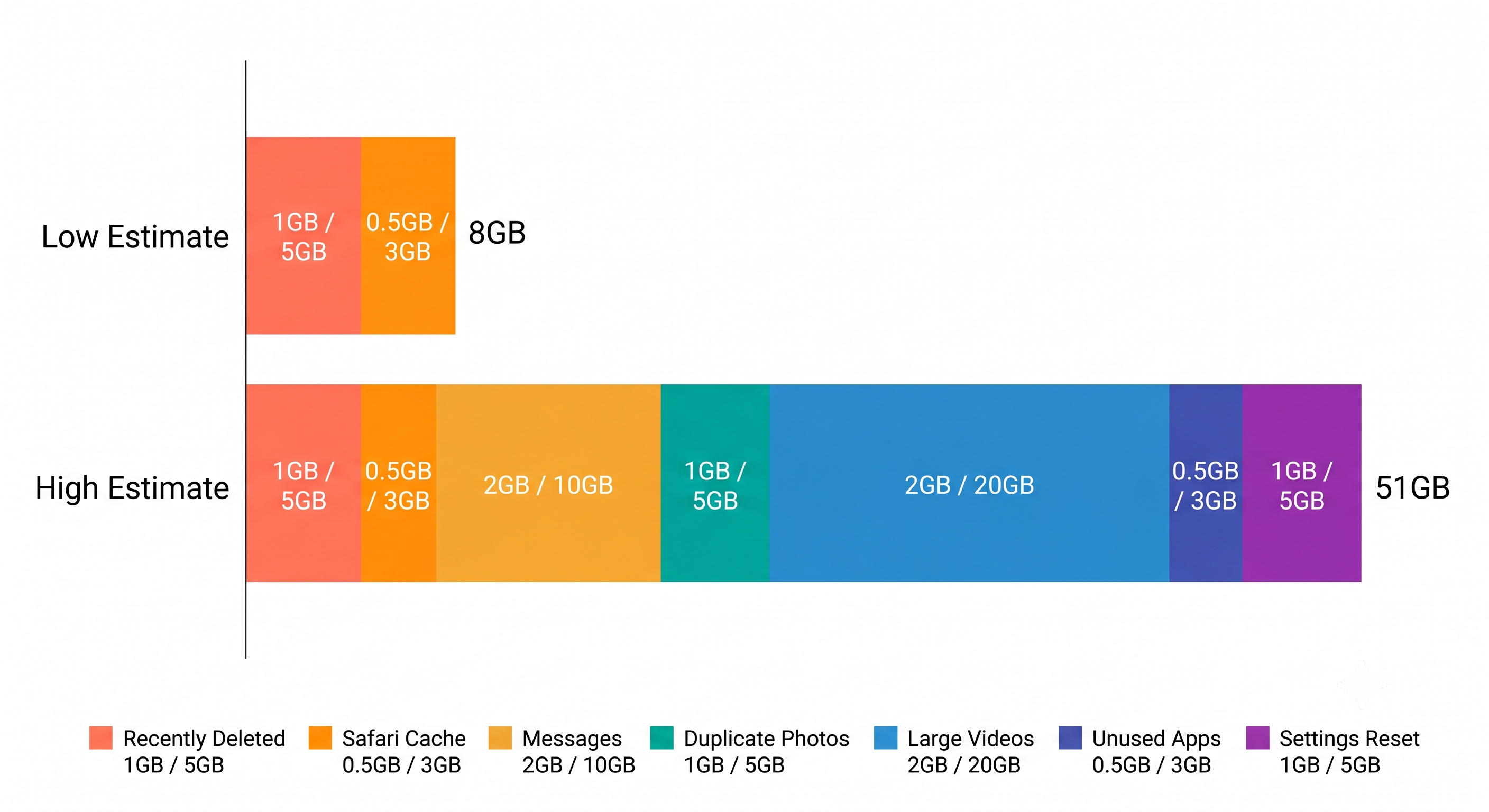
These ranges assume a 128 GB iPhone with 2 to 4 years of accumulated data. A 64 GB device or a newer phone will land toward the lower end. A nearly full 256 GB iPhone likely has more video than average. Start with method 5 in that case.
If you want a breakdown of all these categories in one view, a dedicated storage analyzer can scan photos, videos, cached data, and duplicates in a single pass. But every method in the table above works with built-in iOS tools at no cost.
What to Do If iPhone Storage Is Still Full After Deleting Everything
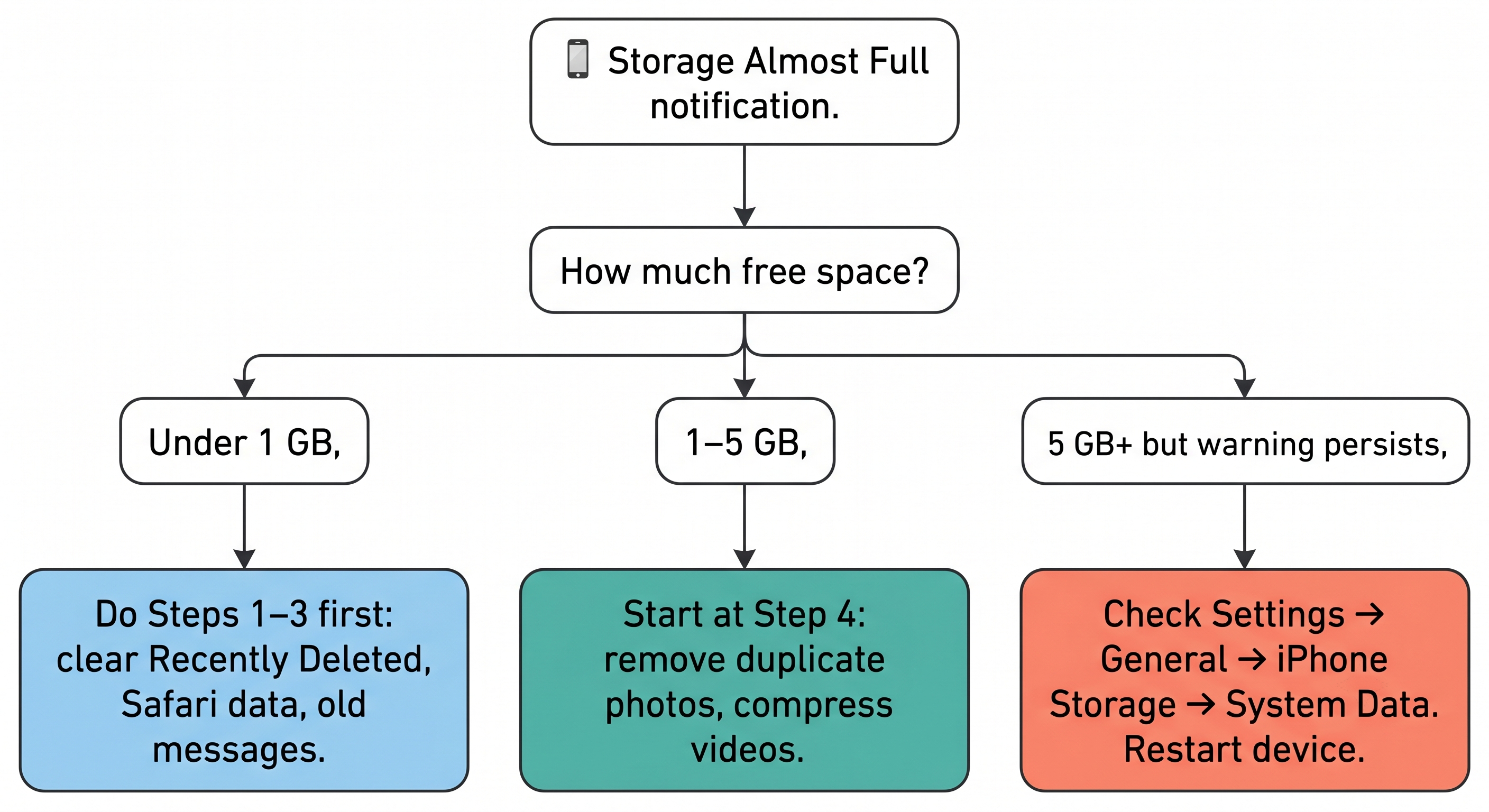
You worked through all seven methods and the storage bar barely moved. The problem is almost certainly System Data.
System Data (labeled "Other" on older iOS versions) is a catch-all for caches, logs, Siri voices, downloaded fonts, and temporary files that iOS manages automatically. On a healthy iPhone, it sits between 5 to 15 GB. When it swells past that, streaming app caches, offline downloads, or leftover iOS update files are usually responsible.
A frustrating quirk that iPhone owners on Reddit report repeatedly: deleting things can make System Data grow. One user deleted a 5 GB game and watched free space appear for a moment, only to see System Data absorb it seconds later. This happens because iOS reclassifies orphaned cache and temporary files into System Data before it finishes cleaning them up. A restart after large deletions gives iOS time to actually reclaim that space.
Another non-obvious cause: incomplete backups. If your iPhone has not completed a backup in a while, cache files accumulate and block background cleanup operations. Finishing a backup (even a manual one to a Mac or PC) can break the logjam and let iOS clear storage it has been holding onto.
If you delete files and storage fills right back up, check whether iCloud Photo Library is set to "Download and Keep Originals." When you free space, iOS sees room and re-downloads full-resolution photos to fill it. Switch to "Optimize iPhone Storage" in Settings > Photos to stop this cycle.
Three things that help:
Restart your iPhone. iOS clears temporary caches during a reboot. Hold the side button and volume up button simultaneously, slide to power off, wait 30 seconds, then turn the phone back on. This alone can free 1 to 3 GB of System Data.
Update to the latest iOS. Go to Settings > General > Software Update. Major updates include cache management improvements, and the update process itself removes old temporary files.
Delete and reinstall cache-heavy apps. Instagram, TikTok, Spotify, and Netflix accumulate caches that you cannot clear from within the app. The in-app "Clear Cache" buttons do not fully remove them. Spotify users have reported the app consuming 60 GB of cache that only a full delete-and-reinstall resolved. TikTok is similarly aggressive, with users seeing 30+ GB in Documents & Data from cached video previews. Deleting and reinstalling gives you a fresh start without losing account data.
If System Data still exceeds 15 GB after those steps, the nuclear option is a full reset. Back up your iPhone to iCloud or a computer, then go to Settings > General > Transfer or Reset iPhone > Erase All Content and Settings, and restore from the backup. This takes 30 to 60 minutes but reliably brings System Data back to normal levels. Users on r/iphone and r/ios consistently confirm it works. One recovered 50 GB, another saw System Data drop from 40 GB to 10 GB after a backup and restore. It is a last resort, not a first step.
For a deeper breakdown of why this happens, see why iPhone storage stays full after deleting everything.
Frequently Asked Questions
How do I free up storage on my iPhone without deleting photos?
Start with non-photo storage: Safari cache, message attachments, and unused apps. The seven methods above are ordered by impact. The first three target cached data and duplicates, not your original photos. If you still need space after those, merge duplicates in Photos > Albums > Duplicates rather than deleting originals.
Why is my iPhone storage full after deleting everything?
The Recently Deleted folder. Deleted photos and videos sit there for 30 days before iOS actually removes them. Empty it first (method 1 above). If storage is still full afterward, System Data is the likely culprit. The troubleshooting section at the bottom covers how to bring it back under control.
Does clearing cache on iPhone delete anything important?
Clearing Safari cache logs you out of websites and removes browsing history. Nothing else is affected. Your photos, apps, contacts, and messages are untouched. Reinstalling an app to clear its cache removes downloaded content and temporary files but preserves your account login on the server side.
How much storage do iPhone photos use?
A single HEIF photo is 1 to 3 MB. Live Photos run roughly double because each stores a 1.5-second video alongside the still. Video is where storage compounds: 4K at 30 fps uses approximately 170 MB per minute. A 128 GB iPhone with 20,000 photos and a few hundred short videos typically has 30 to 60 GB in Photos alone.
Is it safe to offload unused apps on iPhone?
Yes. Offloading removes the app binary but preserves its data. Reinstall any time and your data returns. The one risk: if the developer pulls the app from the App Store before you reinstall, the binary is gone permanently. For apps you are certain you will never reuse, full deletion saves more space.
What is the fastest way to free up storage on iPhone?
Empty the Recently Deleted folder (1 minute, 1 to 5 GB) and clear Safari cache (1 minute, 0.5 to 3 GB). Two minutes, up to 8 GB recovered, no apps or photos lost.
Frequently Asked Questions
Vlad Kuzin
Founder of Orden