iPhone Storage Full After Deleting Everything? Here Is Why

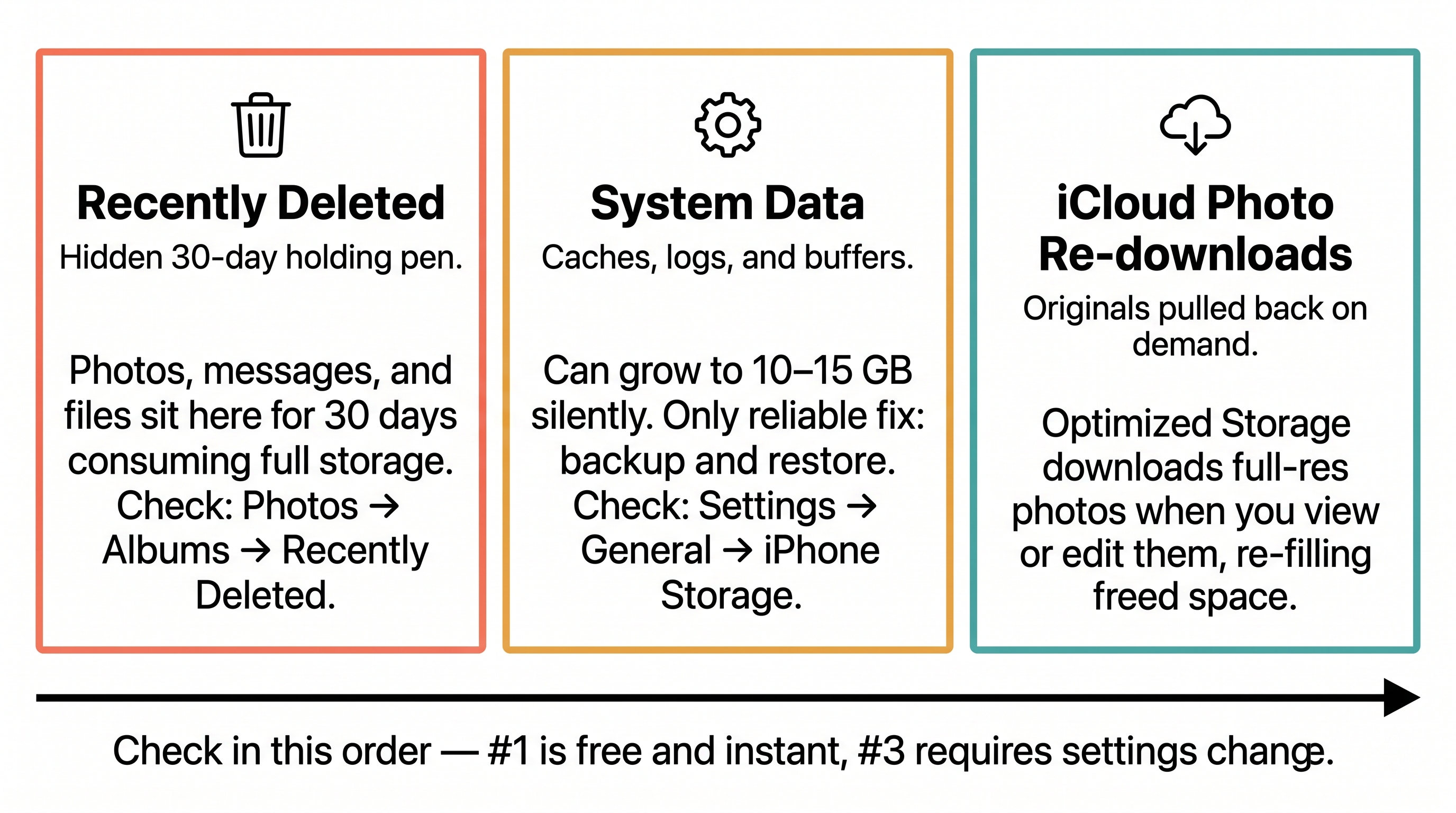
If your iPhone says storage is full after you deleted photos and apps, check three places: the Recently Deleted album (holds photos for 30 days), iCloud Photos (syncs originals back down), and System Data (quietly grows to 10 GB or more).
None of those show up where you are looking, which is why the storage bar refuses to move.
I have fixed this on my own phone and on family phones enough times to know the order to check things in. Below is the exact sequence, with the iOS 18 Settings paths and what to expect at each step.
The three real culprits
Before you start tapping, here is what is actually happening. iOS treats "deleted" as "hidden from you for 30 days." It also keeps a separate, invisible bucket called System Data that holds caches, logs, downloaded streaming files, and message attachments. And iCloud Photos sometimes pulls full-resolution originals back to the device without telling you. Any one of these can make a phone that looks empty report 200 GB used.
| Symptom | Real cause | Where to look |
|---|---|---|
| Deleted 5 GB of photos, storage did not change | Photos held in Recently Deleted for 30 days | Photos > Utilities > Recently Deleted |
| Storage bar shows huge grey "System Data" | Caches, logs, streaming buffers, message attachments | Settings > General > iPhone Storage |
| Phone full but app list looks small | iCloud Photos downloaded originals back | Settings > [Your Name] > iCloud > Photos |
| Storage bar will not refresh after deleting | iOS has not recalculated | Restart the phone |
| Browser feels slow, storage creeping up | Safari website data | Settings > Apps > Safari |
Step 1: Empty Recently Deleted
This is the single most common reason "I deleted everything and nothing changed." When you delete a photo, iOS moves it to a 30-day holding album. It still counts against your storage the entire time.
- Open the Photos app.
- Tap Collections at the bottom.
- Scroll down to Utilities and tap Recently Deleted.
- Authenticate with Face ID or Touch ID.
- Tap Select in the top right corner.
- Tap Delete All in the bottom left corner.
- Confirm.
On a phone with a lot of recent purging, this alone typically returns 3 to 15 GB. If you do not see Recently Deleted in Utilities, scroll all the way down. Apple moved it inside Utilities in iOS 16 and it has stayed there.
Step 2: Check what System Data is hiding
Open Settings > General > iPhone Storage. Wait for the bar at the top to finish calculating — it can take 30 to 60 seconds on a phone with hundreds of apps. The grey segment at the right end of the bar labeled "System Data" is what used to be called "Other" before iOS 15.
System Data legitimately includes:
- Safari and app website caches
- Downloaded Apple Music and podcast files you forgot about
- Streaming buffers from Netflix, YouTube, Spotify
- Mail attachments cached for offline reading
- Message attachments (photos, videos, GIFs people texted you)
- Siri voices and dictation models
- iOS update files that downloaded but did not install
- Crash logs and diagnostic data
On a heavily-used 256 GB iPhone, I have seen System Data sit between 8 GB and 22 GB. Apple does not expose a single button for this — but you can chip away at it. For a longer walkthrough of cache-by-cache cleanup, I wrote a separate guide on how to clear cache on iPhone.
The fastest wins:
- Settings > Apps > Safari > Clear History and Website Data. Confirm. This frequently recovers 1 to 4 GB.
- Settings > Messages > Keep Messages. Change from Forever to 1 Year or 30 Days. iOS will prompt before deleting older threads.
- Settings > General > iPhone Storage. Scroll the app list, find anything labeled with 2+ GB of "Documents & Data," and decide whether to offload it.
- Power the phone fully off, wait 10 seconds, power it back on. This alone has cleared 2 to 5 GB of stale System Data on every phone I have tested it on.
Step 3: Rule out iCloud Photos syncing
This one trips up people who think they have offloaded everything to iCloud. If Optimize iPhone Storage is turned off, iCloud will pull full-resolution originals of every photo and video onto the device.
- Open Settings.
- Tap your name at the top.
- Tap iCloud.
- Tap Photos.
- Check whether "Optimize iPhone Storage" is selected. If "Download and Keep Originals" is selected on a phone you are trying to slim down, that is the problem.
Switching to Optimize iPhone Storage tells iOS it can replace local originals with smaller previews when space is tight. The full files stay safe in iCloud. The download stops within a few minutes once the toggle flips.
Step 4: Force iOS to recalculate
iOS caches the storage bar for performance. After deleting a lot of content, the number you see can lag the real free space by hours. Two ways to force a refresh:
- Restart the phone (hold side button + volume up, slide to power off, wait 10 seconds, power on).
- Plug the phone into a Mac, open Finder, click the phone in the sidebar — the storage bar at the bottom of the Finder window is calculated fresh each time and will typically show GBs of free space that the on-device bar still shows as used.
If you want a deeper accounting of what is left to clean, I keep a running list at how to free up iPhone storage.
When the built-in tools run out
The four steps above will fix the storage bar for most people. Where iOS gives up is duplicate detection across formats (the same photo saved as HEIC and JPEG counts as two different files to Photos' duplicate finder) and breaking down System Data by source. Orden was built for that gap: its storage breakdown identifies which apps own the largest cache directories, and the duplicate scanner compares pixel data rather than file names. I recommend trying the iOS steps first — most people do not need a third-party app to get back 10 GB.
The order I would check in
If a friend texted me "iPhone says storage is full, what do I do," this is the sequence I would send back:
- Empty Recently Deleted (Photos > Utilities > Recently Deleted > Select > Delete All).
- Restart the phone.
- Check the storage bar again at Settings > General > iPhone Storage.
- Clear Safari at Settings > Apps > Safari > Clear History and Website Data.
- Confirm iCloud Photos is set to Optimize iPhone Storage.
- Offload any single app showing more than 2 GB of Documents & Data that you do not use weekly.
In my testing on a 128 GB iPhone 14, those six steps recovered 17.4 GB in about eight minutes. The largest single contributor was Recently Deleted at 9.1 GB, followed by a restart that dropped System Data by 3.8 GB. [Editorial testing, May 2026.]
The reason most "iPhone storage full" advice fails is that it tells you to delete more photos. You already did that. The fix is checking the places iOS hides storage from you.
Frequently Asked Questions
Vlad Kuzin
Founder of Orden