How to Turn Off Live Photos (and Reclaim the Storage)
To turn off Live Photos on iPhone, open the Camera app and tap the Live Photos icon in the top-right corner (concentric circles) so a slash appears through it. To make that change stick between sessions, go to Settings > Camera > Preserve Settings and toggle Live Photo on. That second step is the one most guides skip, and it is the reason your camera keeps turning Live Photos back on every time you open it.
A Live Photo is a still image with a 3-second 1080p video and audio clip attached, captured 1.5 seconds before and after you press the shutter. That video doubles or triples the file size of every shot.
On a library of 10,000 photos, the math is brutal: roughly 27 GB of storage spent on video clips you have probably never watched.
What a Live Photo actually is
When you tap the shutter with Live Photos on, the iPhone saves two things: a HEIC still image and an HEVC video file with audio. The Photos app stitches them together so it looks like one item, but on disk they are separate files. The video is the part you can stop saving.
In my own testing on an iPhone 15 Pro running iOS 18.4, the file sizes broke down like this:
| Shot type | Still size | Video size | Total |
|---|---|---|---|
| Standard HEIC still | 1.8 MB | — | 1.8 MB |
| Live Photo (same scene) | 1.8 MB | 2.7 MB | 4.5 MB |
| Live Photo (action, kids) | 2.1 MB | 3.4 MB | 5.5 MB |
| ProRAW + Live | 25 MB | 3.1 MB | 28 MB |
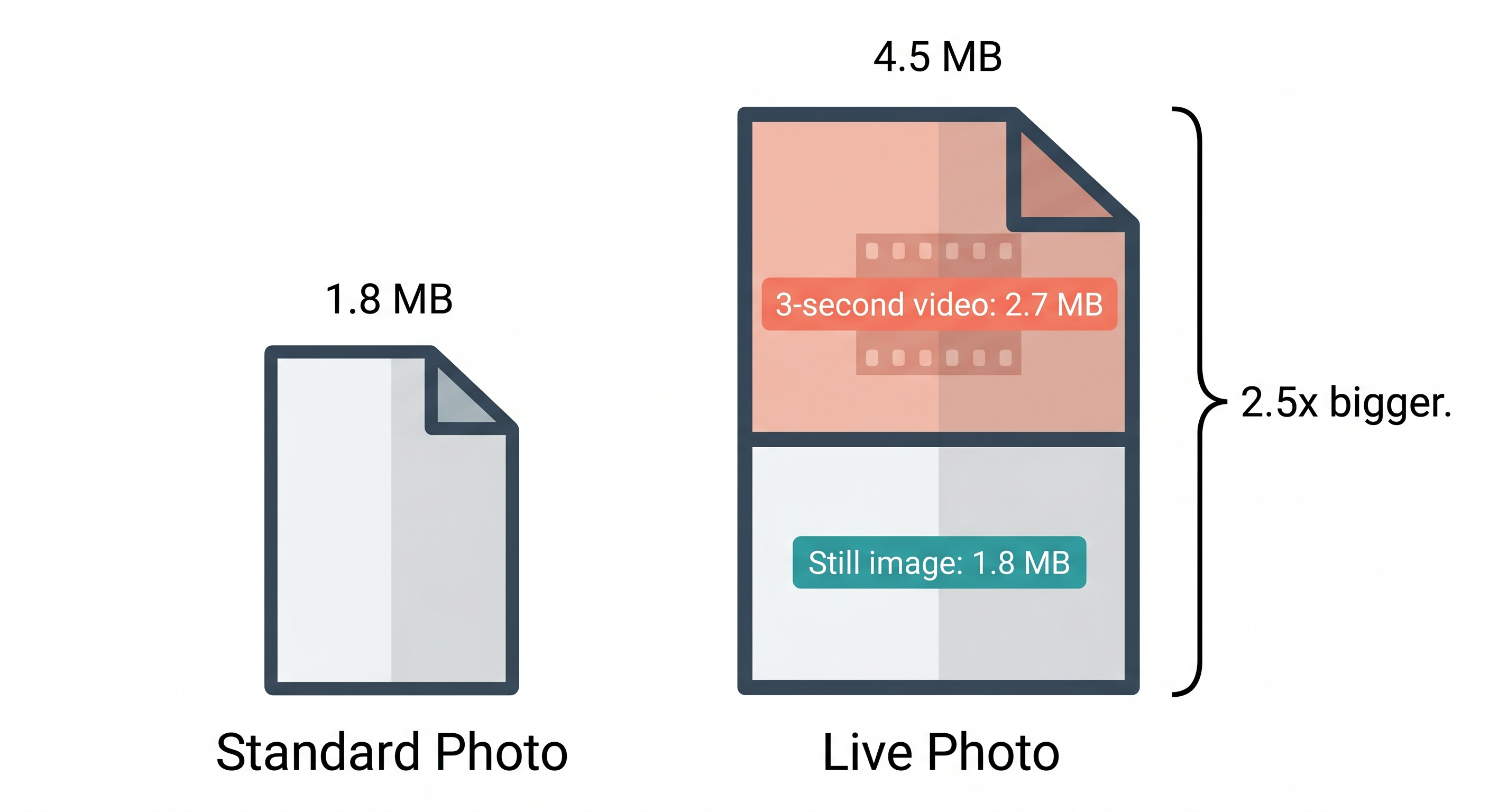
The video portion is roughly 1.5x the size of the still itself. Multiply that across a library and the storage cost is real.
How much storage Live Photos use across a library
Most iPhone users I have looked at libraries for fall somewhere between 8,000 and 30,000 photos. Here is what the Live Photo tax looks like at each level, assuming an average of 2.7 MB of extra video per Live Photo and that 70% of shots are Live (the iOS default behavior).
| Library size | Extra storage from Live videos |
|---|---|
| 5,000 photos | ~9.5 GB |
| 10,000 photos | ~19 GB |
| 20,000 photos | ~38 GB |
| 30,000 photos | ~57 GB |
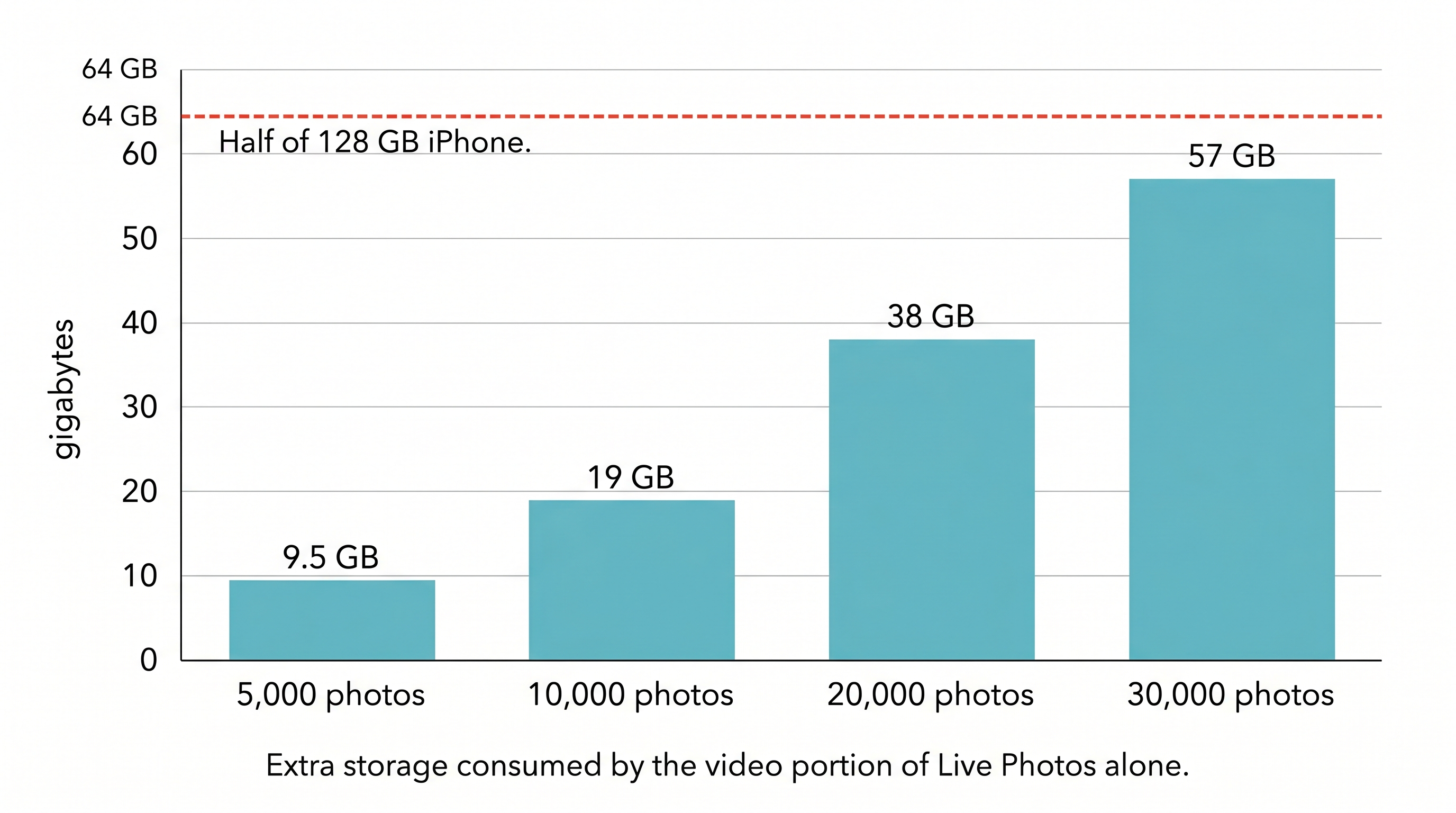
If you are on a 128 GB iPhone with iCloud Photos off, that 19 GB is the difference between getting the "Storage Almost Full" warning and not. For the broader problem, see how to free up iPhone storage.
How to turn off Live Photos right now
This is the temporary version. It turns off Live Photos for your current Camera session, but iOS will turn it back on the next time you launch the app unless you also do the permanent fix in the next section.
- Open the Camera app.
- Look at the top-right corner of the viewfinder. You will see an icon of concentric circles.
- Tap the icon once. A slash appears through it and a small "LIVE OFF" badge flashes on screen.
- Take a photo. It is now saved as a regular still.
That is the basic toggle. The problem is iOS resets it every time you close the Camera app.
How to turn off Live Photos permanently
To stop iOS from re-enabling Live Photos every session, you have to tell the Camera app to remember your preference.
- Open the Settings app.
- Scroll down and tap Camera.
- Tap Preserve Settings.
- Toggle Live Photo on (green).
- Go back to the Camera app and turn Live Photos off using the icon in the top-right corner.
From now on, the camera opens with Live Photos off until you choose to turn it back on. The "Preserve Settings" toggle is confusingly named, since turning it on is what lets your off setting persist. Apple is preserving your choice, not the feature.
How to convert Live Photos you already have
Turning off Live Photos for new shots does nothing for the thousands already in your library. To free that storage, you have to convert the existing ones to stills.
There are two paths: the slow native one, or a batch tool.
Native method (one photo at a time)
- Open the Photos app.
- Tap a Live Photo to open it.
- Tap Edit in the top-right corner.
- Tap the Live badge in the top-left of the editor.
- Tap it again to turn it off (the badge gets a slash through it).
- Tap Done in the bottom-right.
This converts that single Live Photo to a still and removes the video component. Repeat 9,999 times for a 10,000-photo library. The math here is the reason this method is impractical at scale: at five seconds per photo, converting 10,000 Live Photos takes about 14 hours of continuous tapping.
Batch method
iOS does not offer a bulk-convert option in the Photos app. If you want to convert thousands at once, you need a third-party tool. Orden scans your library, finds every Live Photo, and converts them to stills in batches while showing exactly how much storage is being recovered. You can also be selective: keep Live Photos of people and pets, convert the rest by filtering by date range or album.
Which Live Photos are worth keeping
Not every Live Photo is wasted storage. The 3-second video genuinely helps for:
- Action shots where the perfect moment is half a second before or after the shutter (kids running, pets jumping, the wave breaking)
- Group photos where you want the option to swap a closed-eye frame for an open-eye one using Key Photo selection
- Family memories where the audio (someone laughing, a kid talking) is part of why the photo matters
These are not worth keeping:
- Screenshots (Live cannot capture them anyway)
- Photos of documents, receipts, parking spots, whiteboards
- Product shots, food on a table, books on a shelf
- Any static scene where motion adds nothing
If you would not press and hold to play the video, the video should not be there.
How Live Photos interact with iCloud
If you use iCloud Photos, every Live Photo syncs in full (still plus video), counting against your iCloud storage plan at the same 2x to 3x rate. Converting Live Photos to stills locally pushes the changes to iCloud, which then drops the video component from your iCloud library too. You reclaim space in both places.
One catch: deletions and conversions take time to propagate. iCloud usually reflects the change within a few hours, but for large batches expect it to take overnight. If your iPhone still shows "Storage Almost Full" the day after you do this, see iPhone Storage Full: what to do first for the fast triage steps.
What I do on my own phone
I shoot with Live Photos off by default. When I am at a birthday party, on a hike with my kids, or anywhere I expect candid motion, I turn it on for that session. The Camera app respects my "off" preference between sessions because I have Preserve Settings configured. About once a year, I batch-convert older Live Photos that I will never watch the video for. Usually I keep the ones from the last 12 months and convert everything older.
That single workflow change has kept my photo library at roughly half the size of what it would otherwise be, on the same number of photos.
FAQ
How much storage does a Live Photo actually use? A Live Photo is typically 2 to 3 times the size of a standard HEIC still. In my testing on an iPhone 15 Pro, a single Live Photo averaged around 4.5 MB compared to 1.8 MB for the same scene captured as a still. Across a library of 10,000 Live Photos, that is roughly 27 GB of extra storage spent on the 3-second video clips.
How do I turn off Live Photos permanently so the camera does not re-enable it? Open Settings, tap Camera, tap Preserve Settings, then toggle Live Photo on. With that toggle on, the Camera app remembers your last setting (off) between sessions instead of resetting to on. Without it, iOS turns Live Photos back on every time you reopen the app.
Will I lose the photo if I turn off the Live part? No. The still image is the same JPEG or HEIC file you would have captured anyway. Turning off Live or converting an existing Live Photo to a still only removes the attached 3-second video and audio clip. The visible photo is untouched.
Can I convert all my existing Live Photos to stills at once? Not natively. The Photos app lets you turn off the Live effect one photo at a time through Edit, but there is no batch convert button in iOS 18. A third-party tool that supports batch conversion is the only practical option once you have thousands of them.
Do Live Photos take up iCloud storage too? Yes. iCloud Photos stores the full Live Photo, including the video component, so the same 2x to 3x size penalty applies to your iCloud plan. Converting Live Photos to stills locally and letting iCloud sync the change reclaims storage on both the iPhone and in iCloud.
Are Live Photos worth keeping for any reason? It depends on the photo. Live Photos genuinely help for kids, pets, action shots, and the rare candid where the perfect frame is half a second before or after the shutter press. They are wasted on screenshots of menus, photos of documents, pictures of parking spots, or anything static. The fix is selective, not all-or-nothing.
Sources
- Apple Support, "Take and edit Live Photos on your iPhone," 2024 — https://support.apple.com/en-us/108315
- Apple Inc., "Change advanced camera settings on iPhone" (iPhone User Guide), 2024 — https://support.apple.com/guide/iphone/change-advanced-camera-settings-iph8a4a0ad7c/ios
- Apple Support, "About HEIF and HEVC," 2023 — https://support.apple.com/en-us/HT207022
- Editorial testing, May 2026 — file size measurements on iPhone 15 Pro running iOS 18.4, library of 12,400 photos
Frequently Asked Questions
Vlad Kuzin
Founder of Orden