How to Clear Cache on iPhone (App Cache, Safari, System)

To clear cache on iPhone, go to Settings > Apps > Safari > Clear History and Website Data for browser cache, or delete and reinstall individual apps to wipe their cached data. iOS does not have a single "clear all cache" button.
Safari cache is typically 200–500 MB. All app caches combined add up to 2–5 GB on a typical iPhone. If your phone says "Storage Almost Full," cache is probably not the main cause. Photos and videos alone use 20–60 GB, while all caches combined rarely exceed 5 GB.
How to Clear Safari Cache on iPhone
Safari stores copies of website images, scripts, and stylesheets so pages load faster on return visits. Over months of browsing, this cache grows to 200-500 MB, occasionally past 1 GB on media-heavy sites.
To clear Safari cache on iPhone, go to Settings > Apps > Safari > Clear History and Website Data. This removes all browsing history, cookies, and cached files in one step.
- Open Settings.
- Tap Apps.
- Tap Safari.
- Tap Clear History and Website Data.
- Select All History from the time range options.
- Tap Clear History.
You will be signed out of every website afterward. Passwords saved in Settings > Passwords (Apple Keychain) are not affected. Only session cookies are cleared, so you will need to log in again but will not have to reset passwords.
This clearing syncs across all devices on the same Apple Account. Clear Safari cache on your iPhone and your iPad and Mac lose their Safari history too.
Chrome, Firefox, and other browsers maintain separate caches. Clear those from within each browser app, or delete and reinstall the browser entirely.
Expected savings: 200-500 MB.
How to Clear App Cache on iPhone
iOS does not provide a universal "clear app cache" button. How you clear an app's cache depends on whether the app includes its own cache option. The majority do not.
Apps With a Built-In Cache Option
These apps include a cache-clearing option in their own settings:
| App | How to clear cache |
|---|---|
| Spotify | Tap Settings (gear icon) > Storage > Delete Cache |
| Slack | Tap your profile photo > Settings > Advanced > Reset Cache |
| Telegram | Settings > Data and Storage > Storage Usage > Clear Entire Cache |
Instagram, TikTok, Facebook, YouTube, Snapchat, and Netflix do not offer a cache-clearing option. For those, the method below is the only way. For Facebook specifically, there is a dedicated walkthrough for clearing Facebook cache on iPhone.
Delete and Reinstall the App
For any app without a built-in option, deleting and reinstalling is the only way to clear its cache on iPhone.
- Open Settings.
- Tap General.
- Tap iPhone Storage.
- Scroll to the app you want to clear and tap it.
- Note the Documents & Data size (this is the cache and downloaded content).
- Tap Delete App.
- Confirm the deletion.
- Open the App Store and search for the app.
- Tap the download button to reinstall.
- Sign back into your account.
Your account data is not lost. Posts, playlists, messages, and anything stored on the app's servers stays intact. What gets removed: downloaded content (offline songs, cached stories, downloaded episodes) and locally stored temporary files.
The apps with the largest caches tend to follow a pattern. Go to Settings > General > iPhone Storage and check the Documents & Data line for each app:
- Social media apps (Instagram, TikTok, Facebook): 500 MB to 4 GB each
- Streaming apps (Spotify, Netflix, YouTube): 500 MB to 3 GB, more with offline downloads
- Messaging apps (WhatsApp, Telegram): 1-5 GB, mostly from media shared in conversations
A storage analyzer can show you which app caches are largest, so you target the biggest ones first rather than guessing which apps to reinstall.
After reinstalling, the app starts with a cache near 0 MB. The catch: it rebuilds as you use the app. Scroll Instagram for ten minutes and the cache is already growing. Cache clearing is a temporary measure, not a permanent fix.
How to Clear System Data on iPhone
System Data is the gray or dark segment in your iPhone Storage bar. It includes iOS caches, logs, Siri voices, font files, and temporary data from streaming and updates. On a typical iPhone, it occupies 5-15 GB.
There is no "clear System Data" button. iOS manages this category automatically. Three actions can reduce it:
Restart your iPhone. iOS purges temporary caches during a reboot. Hold the side button and volume up button at the same time, slide to power off, wait 30 seconds, then turn the phone back on. This alone can reduce System Data by 1-3 GB.
Update to the latest iOS version. Go to Settings > General > Software Update. iOS updates remove leftover installation files and can improve how the system manages cached data.
Delete and reinstall streaming apps. Spotify, Netflix, YouTube, and Podcasts store buffered content that iOS counts toward System Data. Removing and reinstalling these apps resets their cached footprint.
If System Data exceeds 15 GB and none of these steps bring it down, a backup-and-restore is the most reliable fix. That process takes 30-60 minutes. See the guide on why iPhone storage stays full after deleting everything for the full walkthrough.
What Clearing Cache Actually Frees Up
Here is a side-by-side look at cache sizes versus the categories that actually fill your iPhone:
| Storage category | Typical size (128 GB iPhone) | Can you clear it? | Does it stay cleared? |
|---|---|---|---|
| Safari cache | 200-500 MB | Yes | No (rebuilds as you browse) |
| App caches (all apps combined) | 2-5 GB | Yes (reinstall each app) | No (rebuilds within hours of use) |
| System Data | 5-15 GB | Partially (restart helps) | No (regrows over time) |
| Photos and videos | 20-60 GB | Yes (delete or move) | Yes, permanently freed |
| Message attachments | 2-10 GB | Yes (delete in Messages) | Yes, permanently freed |
| Recently Deleted folder | 1-5 GB | Yes (empty it) | Yes, permanently freed |
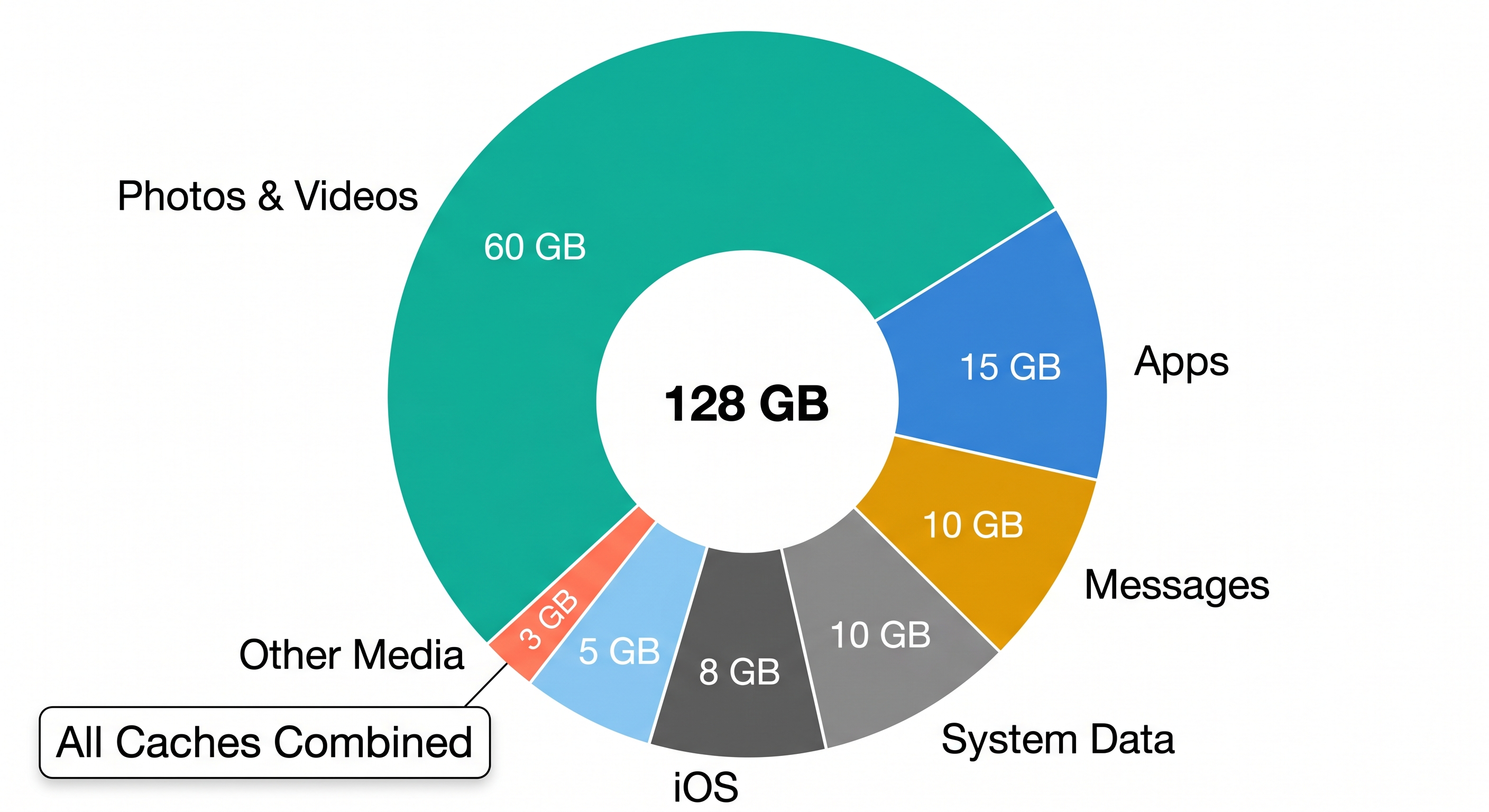
Delete a 2 GB video and that storage stays free. Clear 2 GB of Instagram cache and it refills within a week.
Cache clearing can free 3-8 GB temporarily. If your iPhone needs 20 GB of breathing room, cache is not going to get you there. The permanent wins come from deleting old photos and videos, emptying the Recently Deleted folder, and clearing message attachments. None of those rebuild after you remove them. For a deeper look at why cache clearing falls short, see why "clear cache" does not actually fix iPhone storage.
Orden scans your entire storage (photos, videos, cached data, and duplicates) and shows which category is using how much, including hidden cache and temporary files across all apps. It is useful for seeing where your storage is actually going before you spend time clearing caches that rebuild on their own. For the full walkthrough of permanent storage fixes, see the guide on how to free up iPhone storage.
Frequently Asked Questions
Does clearing cache on iPhone delete anything important?
Clearing Safari cache deletes browsing history, cookies, and website logins. You will need to sign back into sites you use. It does not delete photos, apps, contacts, messages, or passwords saved in Keychain. Clearing an app cache by deleting and reinstalling the app removes only downloaded content (offline songs, cached posts, downloaded episodes) and temporary files. Your account data, which lives on the app's servers, is not affected.
How do I clear app cache on iPhone without deleting the app?
The majority of iPhone apps do not offer a way to clear cache without deleting the app entirely. Spotify, Slack, and Telegram are among the few that include a built-in "clear cache" or "delete cache" option in their app settings. For apps like Instagram, TikTok, and Facebook, deleting and reinstalling from the App Store is the only method. Your account data is preserved. Only cached and downloaded content is removed.
How often should I clear cache on iPhone?
It depends on how much free storage you have. If you have 10 GB or more available, do not bother. iOS manages caches automatically and purges old data when space runs low. If you are consistently under 5 GB free, clearing caches from the heaviest apps (check their sizes in Settings > General > iPhone Storage) once a month can buy you time. But if you find yourself clearing cache every week just to keep your phone working, cache is not the real problem. Delete old photos and videos, empty the Recently Deleted folder, and clear out message attachments instead.
Will clearing cache make my iPhone faster?
Rarely. iPhone slowdowns are almost never caused by cached data. The common causes are an outdated iOS version, 30+ apps refreshing in the background, or a battery that has degraded past 80 percent capacity. Clearing cache might feel faster briefly (the app relaunches fresh and loads the latest content), but the effect fades within minutes as the cache rebuilds. If your iPhone is genuinely slow, check your iOS version in Settings > General > About and battery health in Settings > Battery > Battery Health & Charging.
What is System Data on iPhone and can I delete it?
System Data (previously labeled "Other" on iOS versions before 15) is a catch-all for iOS caches, logs, Siri voices, and temporary files. It typically occupies 5-15 GB and cannot be deleted directly. There is no button for it. Restarting your iPhone clears temporary caches and can reduce System Data by 1-3 GB. Deleting and reinstalling streaming apps like Spotify and Netflix also helps, because their cached content gets counted toward System Data. If it consistently exceeds 15 GB, a full backup-and-restore is the most reliable way to reset it.
Frequently Asked Questions
Vlad Kuzin
Founder of Orden