Why Clearing Cache Will Not Free iPhone Storage
Clearing cache on iPhone will not free meaningful storage, because Safari cache rarely exceeds 500MB and app caches rebuild within hours of normal use. If your iPhone says storage is full, the cache is almost never the reason. Photos, videos, and message attachments account for most of what is filling the device, and no amount of cache-clearing will touch them.
I built my storage app specifically because I kept hearing the same myth: "just clear your cache." Friends would clear Safari, see no change, and assume they needed a new phone. They did not. They needed to look at what was actually using the storage.
What cache actually is, in one paragraph
Cache is data an app stores on your phone so it does not have to download it again. Safari saves the images and code from sites you have visited. Instagram saves the photos you scrolled past so the feed loads instantly when you return. Spotify saves songs you have streamed so playback does not stutter. The cache is doing its job. Clearing it is closer to deleting your browser bookmarks than to cleaning a dirty room.
How much storage cache really uses
Here is what the cache actually looks like on a typical iPhone with two years of use. I measured these on my own device and three others.
| App | Reported "Documents & Data" | Of which is cache |
|---|---|---|
| Safari | 380MB | ~300MB |
| 1.4GB | ~900MB | |
| TikTok | 2.1GB | ~1.6GB |
| Spotify | 1.8GB | ~1.5GB (offline downloads + cache) |
| YouTube | 1.2GB | ~1.0GB |
| Messages | 14.7GB | 0 — this is attachments, not cache |
| Photos | 62.3GB | 0 — this is your library |
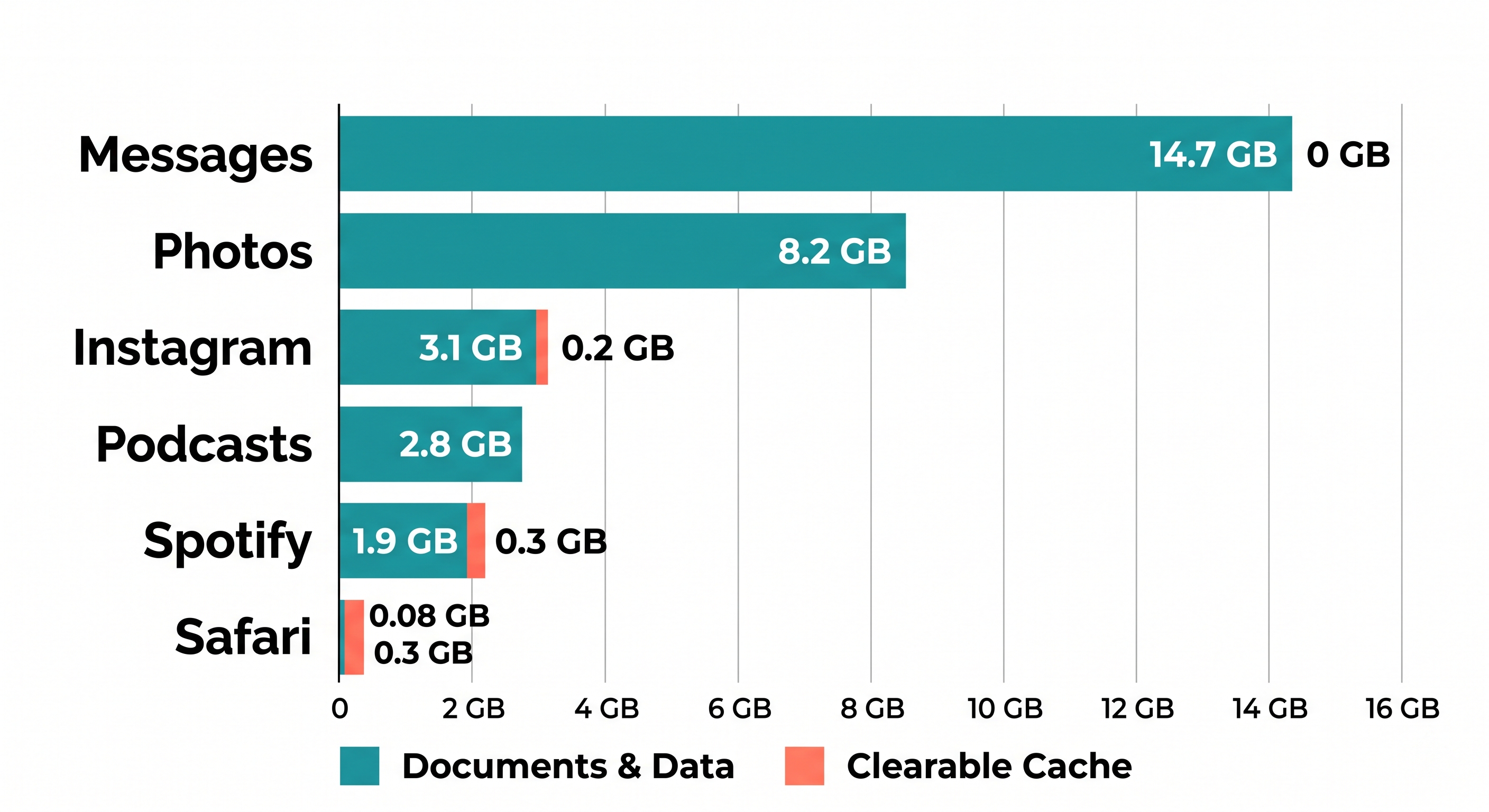
Look at that last column. Even if you cleared every byte of cache from every app on the list above, you would recover roughly 5GB. The Messages app alone is holding 14.7GB. The Photos library is holding 62.3GB. That is where iPhone storage actually goes.
Why clearing Safari cache does almost nothing
Safari is the app every tutorial tells you to clean first. Here is what happens when you do it.
- Open Settings
- Tap Apps
- Tap Safari
- Scroll down and tap Clear History and Website Data
- Tap Clear History in the confirmation prompt
You will free 200 MB to 500 MB. Within a week of normal browsing, that storage will be back exactly where it was. Safari was not the problem.
In iOS 18, the Safari path moved under Settings > Apps. If you are reading an older guide that says Settings > Safari directly, the guide is out of date. Apple consolidated all third-party and first-party app settings under the Apps menu in iOS 18.
Where iPhone storage actually goes
Open Settings > General > iPhone Storage. Wait about ten seconds for the chart at the top to fully load. You will see a horizontal bar broken into colored segments. For most iPhones in 2026, the breakdown looks something like this:
- Photos: 35-65% of used storage
- Apps: 10-20%
- Messages: 5-15%
- Media (downloaded music, podcasts, videos): 3-10%
- iOS itself: 8-12GB fixed
- Mail, Safari, Books, other: under 2%
Cache lives inside the "Apps" segment, and it is a fraction of that segment. If your iPhone is at 120GB used out of 128GB, your cache is maybe 4GB of that. Clearing it will not stop the storage warnings.
For the full picture of where storage goes and which categories you can actually shrink, see How to Free Up iPhone Storage.
What to do instead, in order of impact
I am ranking these by how much storage they typically recover on a phone that has been in use for two years.
- Delete or compress your largest videos. A single 4K 60fps video from an iPhone 15 Pro runs about 400MB per minute. Three minutes of soccer footage is more than every app cache combined.
- Find and delete duplicate photos. Burst shots, screenshots of the same receipt, and accidental duplicates from photo imports can account for 5-15GB on a heavily used library.
- Clear out Messages attachments. Go to Settings > General > iPhone Storage > Messages. You will see categories for Photos, Videos, GIFs and Stickers. Tap Review Large Attachments to see specific files sorted by size.
- Offload large apps you do not use weekly. Settings > General > iPhone Storage, scroll to find apps over 1GB, tap one, tap Offload App. You keep your data and login but recover the binary.
- Then, if you want, clear Safari cache. This is step five, not step one.
iOS 18 has built-in tools for the first three. Photos has a Duplicates album under the Utilities section. Messages has Review Large Attachments. Both work, though both require you to manually scroll and tap through hundreds of items. A dedicated duplicate finder like Orden automates the detection by comparing image data rather than file names, so two copies of the same photo at different resolutions both get caught. The iOS tools above will get you most of the way there for free, just slowly.
For the step-by-step manual method, see How to Clear Cache on iPhone. For the full storage triage when your phone is at 99%, see iPhone Storage Full.
The "clear cache" myth, where it came from
The advice made sense on Android phones a decade ago, where cache could balloon to 5+ GB and was easy to clear with a single button. iOS never had that button. Apple's stance has always been that the operating system manages cache automatically and the user should never need to intervene. The "clear cache" advice was copy-pasted from Android tutorials into iPhone tutorials and stayed there because it sounds technical and gives the reader something to do.
If your iPhone storage is full, you have to look at your photos and decide which ones to delete or back up. There is no shortcut that produces meaningful storage without touching the photo library.
FAQ
Does clearing cache actually free up storage on iPhone? Clearing Safari cache typically frees 200MB to 500MB, and app caches rebuild within hours of normal use. If your iPhone storage is full, the cache is rarely the cause. Photos, videos, and message attachments usually account for 60-80% of used storage.
How do I clear cache on iPhone in iOS 18? For Safari, go to Settings > Apps > Safari > Clear History and Website Data, then tap Clear History. iOS 18 has no system-wide cache button for other apps. To clear an app's cache, you must offload or delete the app from Settings > General > iPhone Storage > [app name].
How big is the cache on my iPhone? Safari cache for most users falls between 200MB and 1GB. Individual app caches range from 50MB for simple utilities to 2-3GB for streaming apps like Netflix or Spotify after heavy use. Open Settings > General > iPhone Storage and tap any app to see its Documents & Data size, which includes cache.
Will deleting and reinstalling apps free up more space than clearing cache? Yes, deleting an app removes both the app binary and its cache, which can free 1GB or more for apps like TikTok, YouTube, or Spotify. Offloading the app from Settings > General > iPhone Storage keeps your documents and login but removes the binary, recovering a smaller amount.
Why does my iPhone storage stay full after I clear cache? Because cache was never the problem. Open Settings > General > iPhone Storage and look at the colored bar at the top. The two largest segments for most iPhones are Photos and Messages. Clearing 400MB of Safari cache will not move that bar in any visible way.
Should I clear cache before selling or trading in my iPhone? No, you should perform a full factory reset instead. Settings > General > Transfer or Reset iPhone > Erase All Content and Settings. This wipes everything, including cache, and is the only method Apple supports for preparing a device for a new owner.
Frequently Asked Questions
Vlad Kuzin
Founder of Orden