Best Video Compressor Apps for iPhone (2026)

The fastest free way to compress a video on iPhone in 2026 is iMovie, Apple's own editor, which re-encodes videos at a lower resolution and shrinks a 1-minute 4K 60fps clip from roughly 400MB to about 60MB. Third-party compressor apps like Video Compressor by InShot or Compress Videos & Resize Video offer finer control over bitrate, but three of four free tiers add a watermark, cap the export resolution, or limit the number of files you can process per day. The honest tradeoff nobody mentions: every compression loses quality, and apps that promise "no quality loss" are either not compressing much or hiding the loss behind sharpening filters.
If your iPhone is full and one or two videos are the cause, this is what actually works.
Why one video eats 4GB of your phone
A single minute of 4K 60fps video on iPhone is roughly 400MB. Five minutes is 2GB. A school recital recorded at default settings can pass 10GB on its own.
These numbers come directly from Apple. Open Settings > Camera > Record Video and the iOS interface lists the file size per minute for every recording format:
| Recording mode | File size per minute |
|---|---|
| 720p HD at 30 fps | ~40 MB |
| 1080p HD at 30 fps (default) | ~60 MB |
| 1080p HD at 60 fps | ~90 MB |
| 4K at 24 fps (film style) | ~135 MB |
| 4K at 30 fps | ~190 MB |
| 4K at 60 fps HDR | ~400 MB |
Source: iOS 18 Camera settings screen.
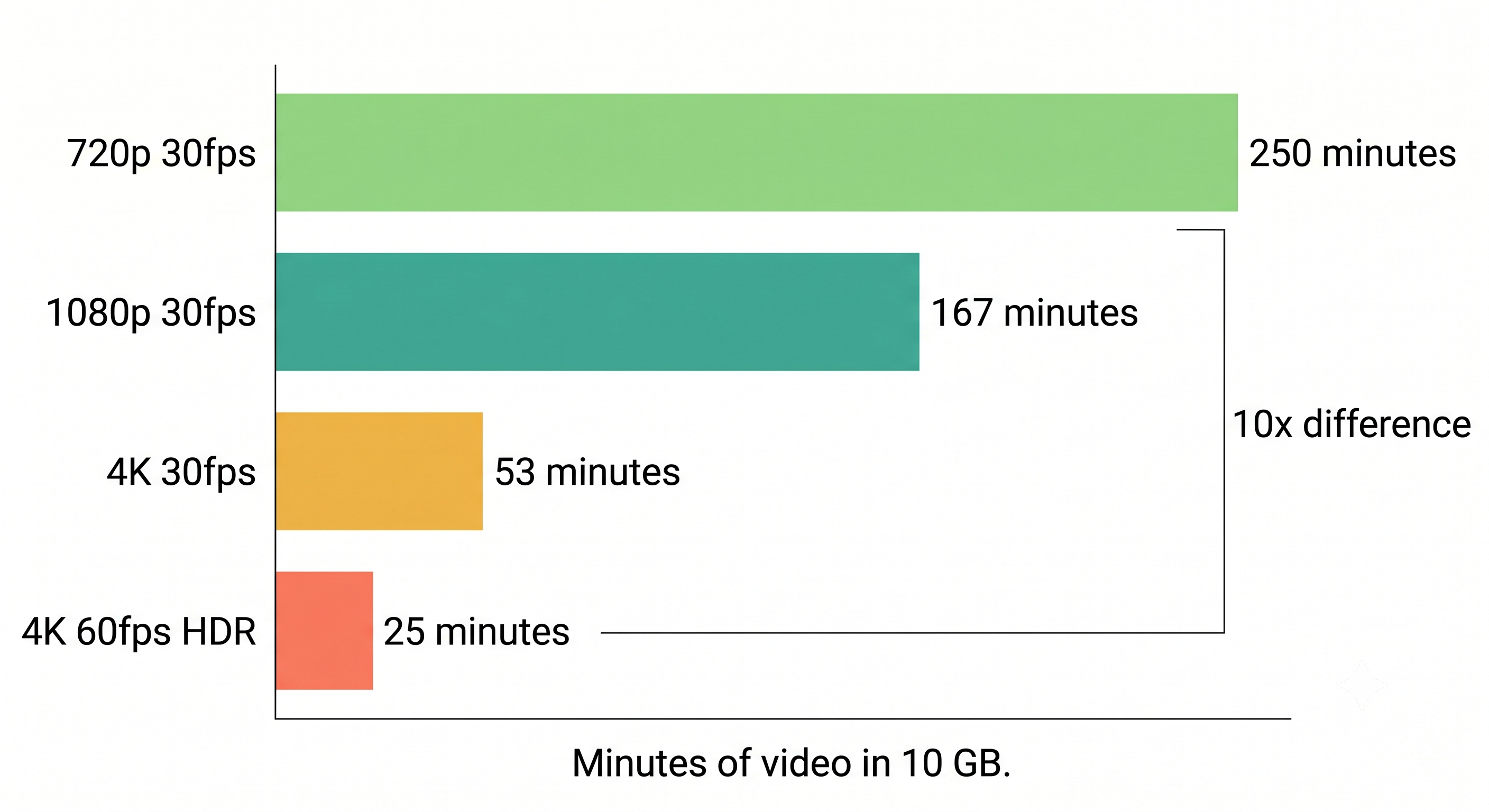
Under Settings > Camera > Formats, "High Efficiency" uses HEVC and produces files roughly half the size of "Most Compatible" (H.264) at the same resolution. Switching to High Efficiency cuts every new video's size in half with no visible quality loss. That single change does more for future recordings than any compressor app does for old ones.
Compress with iMovie (free, no watermark)
iMovie is the only video compressor for iPhone that is free, watermark-free, and made by Apple. It is technically an editor, but exporting at a lower resolution re-encodes the file, which is exactly what compression is.
The full path:
- Install iMovie from the App Store if it is not already on your phone.
- Open iMovie.
- Tap Start New Project.
- Tap Movie.
- Tap the video you want to compress.
- Tap Create Movie at the bottom.
- Tap Done in the top-left.
- Tap the Share icon (the square with the arrow).
- Tap Save Video.
- Choose a resolution: HD - 1080p, HD - 720p, Medium - 540p, or Low - 360p.
iMovie processes the file and saves the compressed copy to Photos as a new video. The original is untouched. In my testing, a 1-minute 4K 60fps clip drops from about 400MB to about 60MB at 1080p, and to about 25MB at 720p. The 720p version looks fine on a phone screen and survives upload to Instagram, Telegram, and email attachments without further degradation.
Third-party compressor apps: what is worth installing
I tested the App Store category for "video compressor" in May 2026. The pattern is consistent: free tiers are designed to frustrate you into paying, not to compress your videos.
| App | Free tier limitation | Watermark | Bitrate control |
|---|---|---|---|
| Video Compressor by InShot | Daily file count cap | None on basic export | Preset only |
| Compress Videos & Resize Video | Ads between exports | None | Custom bitrate |
| Media Converter | Limited output formats free | None | Yes |
| Video Compress - Shrink Vids | Resolution capped on free tier | Yes on free tier | Yes |
Pick a third-party compressor only if you need something iMovie cannot do: setting a custom bitrate, batch-compressing 20 clips at once, or converting formats (MOV to MP4). For one-off compression of a single video, iMovie is faster because there is no install dance, no ads, and no upsell modal.
The quality vs file size tradeoff, in plain terms
Compression works by throwing away visual data the codec thinks you will not notice. The more it throws away, the smaller the file and the more visible the artifacts: blocky shadows, smeared faces during motion, banding in skies, blurred text on signs.
Three rules of thumb from my testing:
- 4K to 1080p: Invisible on a phone screen. Nearly invisible on a laptop. Use this as your default.
- 1080p to 720p: Visible if you look for it. Fine for social media uploads or sending to family.
- Below 720p: Faces look soft, text becomes unreadable. Only use for quick previews or email attachments under 25MB.
The apps advertising "compress without losing quality" are doing one of two things: compressing very lightly (50MB instead of 400MB, useful but not what most people need), or running a sharpening filter that masks the artifacts. Neither approach is magic.
When you should not compress
Compression is destructive and not reversible. Once the original is deleted, the lost detail is gone. Before compressing irreplaceable footage:
- Back up the original to iCloud, a Mac, or an external drive.
- Confirm the backup is readable on a different device.
- Then delete the original from the iPhone.
For everyday clips (random recordings, screen captures, dog videos), compression is fine and you can delete the original after a quick check. For weddings, funerals, first steps, and anything you would cry over losing, keep the original somewhere else first.
If your storage is overflowing in general, video compression is one of three highest-impact moves, alongside removing duplicate photos and clearing the categories listed under iPhone Storage. Orden handles the duplicate-photo side by comparing image data rather than file names, and its video compression feature shows the before-and-after size for each clip before you commit. For pure compression of a single file, iMovie is enough.
Quick decision guide
| Situation | What to use |
|---|---|
| One video, one time, free | iMovie at 1080p |
| Twenty videos at once | Third-party app with batch support |
| Send via email under 25MB | iMovie at 540p |
| Keep best quality, save space going forward | Switch camera to HEVC and 1080p 30fps |
| Irreplaceable footage | Do not compress. Back up the original first. |
Frequently asked questions
What is the best free video compressor app for iPhone with no watermark? iMovie, made by Apple, is the only video compressor that is fully free, watermark-free, and unlimited. It is technically an editor, but exporting at a lower resolution compresses the file as a side effect.
Can I compress a video on iPhone without losing quality? No. All compression discards data. The gap between 4K and 1080p is usually invisible on a phone screen, so dropping one step down is "lossless to the eye" but not actually lossless. Apps claiming otherwise are exaggerating.
How do I reduce video file size for email on iPhone? The Mail app sometimes offers to send a video in a smaller size, but the option is inconsistent. The reliable path is to compress in iMovie first at 540p, save the new copy, then attach that file. A 1-minute clip will land around 15 to 20MB, comfortably under most email limits.
Why is my iPhone storage full of "Other"? "Other" in Settings > General > iPhone Storage is a catch-all for system files, caches, and unclassified data. It is rarely video. If video is your problem, scroll to Photos in the same screen. That is where recordings count.
Does compressing a video send it to the cloud? iMovie and most reputable third-party apps process video locally on the iPhone. No upload happens. Avoid any app that requires you to upload your video to "compress in the cloud." That is slower, uses your cellular data, and creates a privacy exposure.
Sources
- Apple Support, Change advanced camera settings on iPhone, https://support.apple.com/guide/iphone/change-advanced-camera-settings-iph2dd6b3c80/ios
- Apple Support, iMovie User Guide for iPhone, https://support.apple.com/guide/imovie-iphone/welcome/ios
- Apple Support, About High Efficiency video file format on iPhone, https://support.apple.com/en-us/HT207022
- iOS 18 Camera Settings interface, verified June 2026
- Editorial testing, May and June 2026
Frequently Asked Questions
Vlad Kuzin
Founder of Orden