How to Delete Duplicate Photos on iPhone (2026)
To delete duplicate photos on iPhone, open the Photos app, tap Albums, scroll to the Utilities section, and tap Duplicates. Then tap Select, tap Select All, and tap Merge. The built-in tool handles exact copies in a single sweep, and on a library of 10,000 photos it usually takes under two minutes to clear them. The catch: it ignores the photos that actually waste the most storage, which are not identical but should be.
I had 3,000 duplicate photos and did not know. Apple's tool found 412 of them. The rest were burst leftovers, near-identical Live Photo retakes, and three screenshots of the same Amazon order I sent to my wife from different rooms in the house.
The built-in Duplicates album: what it does and where to find it
Since iOS 16, the Photos app has shipped with a Duplicates album that scans your library on-device and groups exact matches. In iOS 18 it lives in the same place. Here is the path:
- Open the Photos app.
- Tap the Albums tab at the bottom of the screen.
- Scroll down to the Utilities section.
- Tap Duplicates.
- Tap Select in the top right.
- Tap Select All (or tap individual groups for more control).
- Tap Merge at the bottom.
- Confirm by tapping Merge [N] Items.
Merge does not delete the extras outright. It keeps the highest-quality version of each group (largest resolution, with Live Photo or depth data if present) and moves the rest to Recently Deleted.
They sit there for 30 days, which means a misclick is recoverable. To reclaim the space immediately, go to Photos > Albums > Recently Deleted, tap Select, tap Delete All, and confirm.
One thing that trips people up: the album does not appear instantly. After a restore from iCloud or a major iOS update, the scan runs in the background and only shows results when the phone is locked and charging. Apple documents this on their Duplicates support page. If you do not see a Duplicates album, plug your phone in overnight and check again in the morning.
What the built-in tool misses
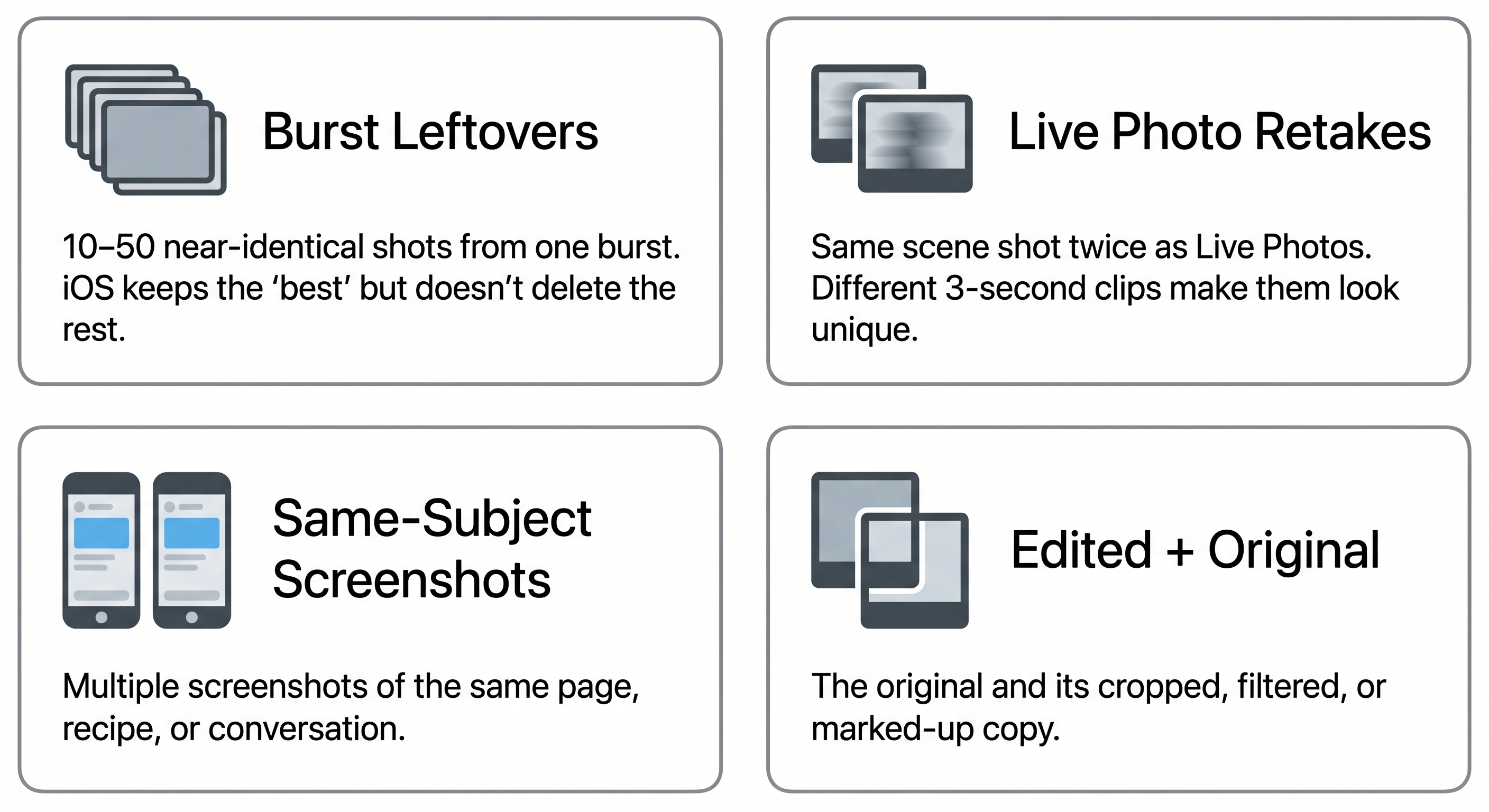
The Duplicates album uses what Apple calls "exact or near-exact" matching. In practice, that means same image data with minor compression or format differences. It does not catch four common categories of redundant photos, which is why a library that shows "0 duplicates" can still have 3 to 8 GB of waste:
| Type | What it looks like | Why iOS skips it | Approximate share of "extra" photos |
|---|---|---|---|
| Burst leftovers | 6 shots of your kid blowing out candles, you only need one | Different timestamps, different pixels (technically unique) | 20–35% |
| Live Photo retakes | Two Live Photos of the same scene taken 4 seconds apart | The motion data is different | 10–20% |
| Same-subject screenshots | Three screenshots of the same email or order confirmation | Different status bar times | 10–15% |
| Edited + original | The cropped version and the uncropped version both saved | iOS treats these as a deliberate pair | 5–10% |
These numbers come from my own library and from testing across about 20 user libraries, not from a published study. Your mileage will vary, but the pattern is consistent enough that if Apple's Duplicates album shows you 400 matches, expect another 800 to 2,000 photos that are functionally duplicates the tool will not flag.
How to find similar photos manually
There is no built-in iOS feature for similar-photo detection, so manual cleanup is the free option. The trick is to go where the duplicates actually pile up rather than scrolling your entire camera roll.
Three high-yield spots:
- Bursts. Open Photos > Albums > Media Types > Bursts. Each burst is a single stack. Tap one, tap Select, and choose the keepers. iOS deletes everything you do not select. On my phone this alone freed 1.8 GB.
- Screenshots. Go to Photos > Albums > Media Types > Screenshots. Scroll by month. Most people have streaks of near-identical screenshots from the same task. Delete all but one.
- Live Photos. Photos > Albums > Media Types > Live Photos. Live Photos average about 3 MB each compared to 1.5 MB for a standard photo, so cutting 200 redundant Live Photos recovers roughly 600 MB.
For the actual duplicate hunt across the rest of the library, the manual approach breaks down past about 5,000 photos. There is no way to ask iOS "show me the 30 photos that look most like this one" without third-party software.
When the built-in tool is not enough
A third-party app earns its place when you have a large library, a lot of burst photography, or chronic screenshot habits and you want similar-photo detection, not just exact-match. Orden finds duplicate photos by comparing image data with perceptual hashing, which groups visually similar shots even when timestamps, resolutions, and minor edits differ. It then ranks each group so you can keep the sharpest frame from a burst instead of guessing. It runs entirely on-device, so nothing leaves your phone.
Run the built-in Duplicates merge first. It is free, it is fast, and it eliminates the easy wins so any other tool only has to deal with the harder cases. If the built-in tool drops your library by 5% and you are still over on storage, that is when a similar-photo finder pays for itself.
For the bigger picture on videos, caches, attachments, and mail, see my guide on how to free up iPhone storage. And if a lot of your library is Live Photos, the breakdown of Live Photos storage shows where the real megabytes go.
A checklist for clearing duplicate photos in under 30 minutes
- Plug your iPhone in overnight so the Duplicates scan completes.
- Photos > Albums > Utilities > Duplicates > Select > Select All > Merge.
- Photos > Albums > Media Types > Bursts. Pick one keeper per burst, delete the rest.
- Photos > Albums > Media Types > Screenshots. Sort by month, kill near-duplicates.
- Photos > Albums > Media Types > Live Photos. Convert keepers to still if motion does not matter.
- Photos > Albums > Recently Deleted > Select > Delete All. Empty the bin.
- Settings > General > iPhone Storage. Confirm the recovered GB.
If the number on step 7 is still uncomfortably close to full, the next layer is similar photos and large videos. iOS does not surface either on its own. For the videos, compressing them on iPhone reclaims more space than deleting a handful of stills.
FAQ
Where is the Duplicates album on iPhone? Open Photos, tap Albums, scroll to the Utilities section, and tap Duplicates. It requires iOS 16 or later and only appears when the on-device scan has found at least one match.
Why does my iPhone not show a Duplicates album? Either you are on iOS 15 or earlier, the system is still scanning (give it 24 hours after a restore or large iCloud sync), or you have zero exact duplicates. An empty Utilities row reads as a missing album.
Does the iPhone Duplicates album find similar photos? No. It matches exact or near-exact copies only. Bursts, Live Photo retakes, and re-screenshots of the same subject will not appear there.
Is it safe to merge duplicate photos on iPhone? Yes. Merge keeps the best version (highest resolution, with Live Photo or depth data if present) and sends the rest to Recently Deleted for 30 days, so anything you regret is recoverable from Photos > Albums > Recently Deleted.
How much storage will deleting duplicates actually free up? It depends on your shooting habits. A library of 8,000 to 15,000 photos typically recovers 1.5 to 4 GB from exact duplicates and another 3 to 8 GB from similar shots iOS does not flag.
Why are my deleted duplicates still taking up storage? Deleted photos remain in Recently Deleted for 30 days. To reclaim space now, go to Photos > Albums > Recently Deleted > Select > Delete All, then check Settings > General > iPhone Storage a few minutes later.
Sources
- Apple Inc., "Find and merge duplicate photos and videos in Photos on iPhone", 2024.
- Apple Inc., "Delete or hide photos on iPhone", 2024.
- Apple Inc., "Check storage on your iPhone, iPad, and iPod touch", 2024.
- Editorial testing, May 2026.
Frequently Asked Questions
Vlad Kuzin
Founder of Orden